
Sync with Google Drive and Google Calendar
Every change you make is saved to your own Google Drive automatically. You can also put tasks with a due date into Google Calendar.
How saving works
When you add, edit or complete a task, StartReMinder saves it to a StartReMinder folder in your Google Drive. You do not need to press a save button. Once a day it also keeps a backup copy there; the newest 14 backups are kept.
Check that your data is synced
Click the gear icon at the bottom of the left list to open Settings. The card at the top shows the sync status:
- Data synced: everything is saved to Google Drive.
- Syncing…: a change is being saved.
- Not synced: you are not connected to Google. Click Connect.
- Sync failed: check your internet and click Retry.
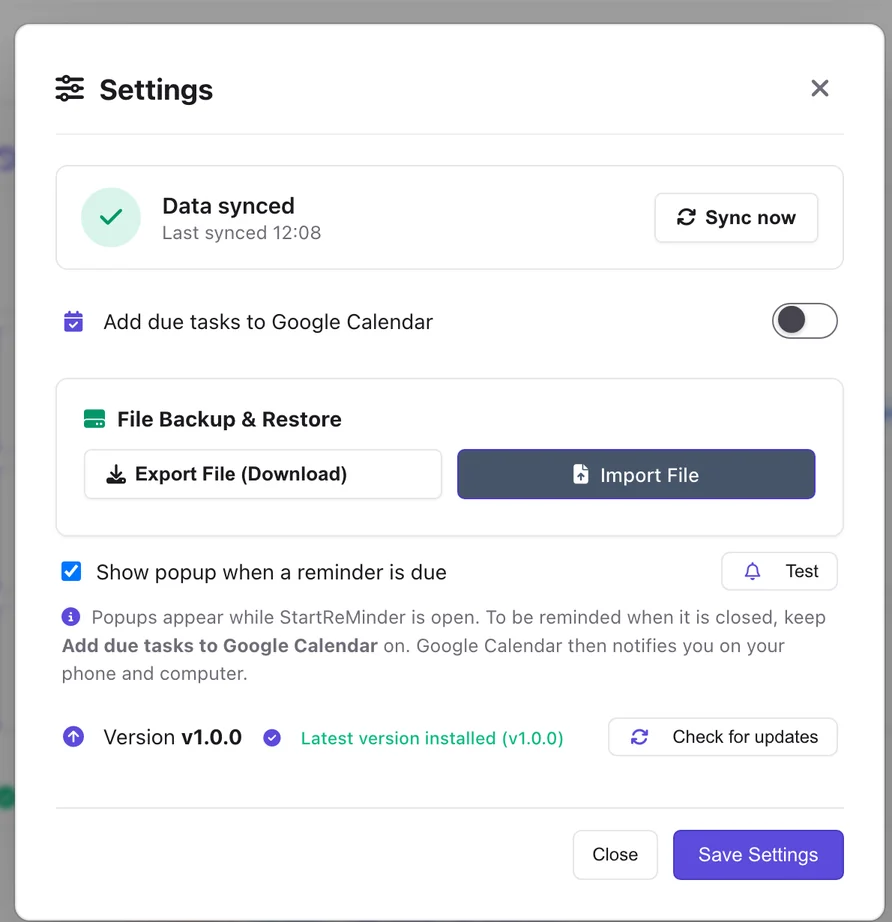
Click Sync now any time to save straight away.
Use StartReMinder on more than one device
Sign in with the same Google account on each computer, phone or the Windows app. Changes from another device appear within about a minute, or as soon as you switch back to the StartReMinder window.
If your connection drops
You can keep working. Your changes stay on your device and you will see a message that they are not saved to Google Drive yet. When you sign in again, StartReMinder adds them to your Drive copy.
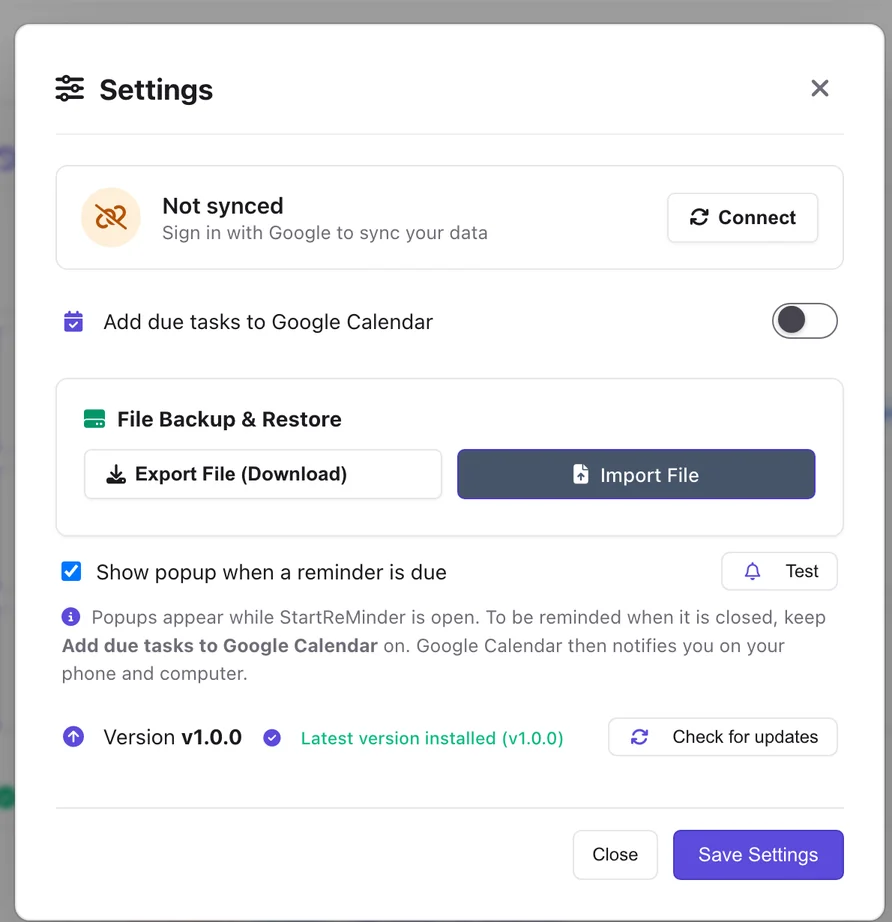
Turn on Google Calendar
In Settings, switch on Add due tasks to Google Calendar. Google asks if StartReMinder may manage events in your calendar. Tick the Google Calendar box in the Google window, then click Continue (or Allow). If you leave the box empty, Calendar sync stays off.
From then on, tasks that have a due date appear in your Google Calendar and are updated when you edit them. Google Calendar can remind you on your phone, watch and computer even when StartReMinder is closed, and it also sends you a reminder email (10 minutes before a task with a time, 1 hour before an all-day task).
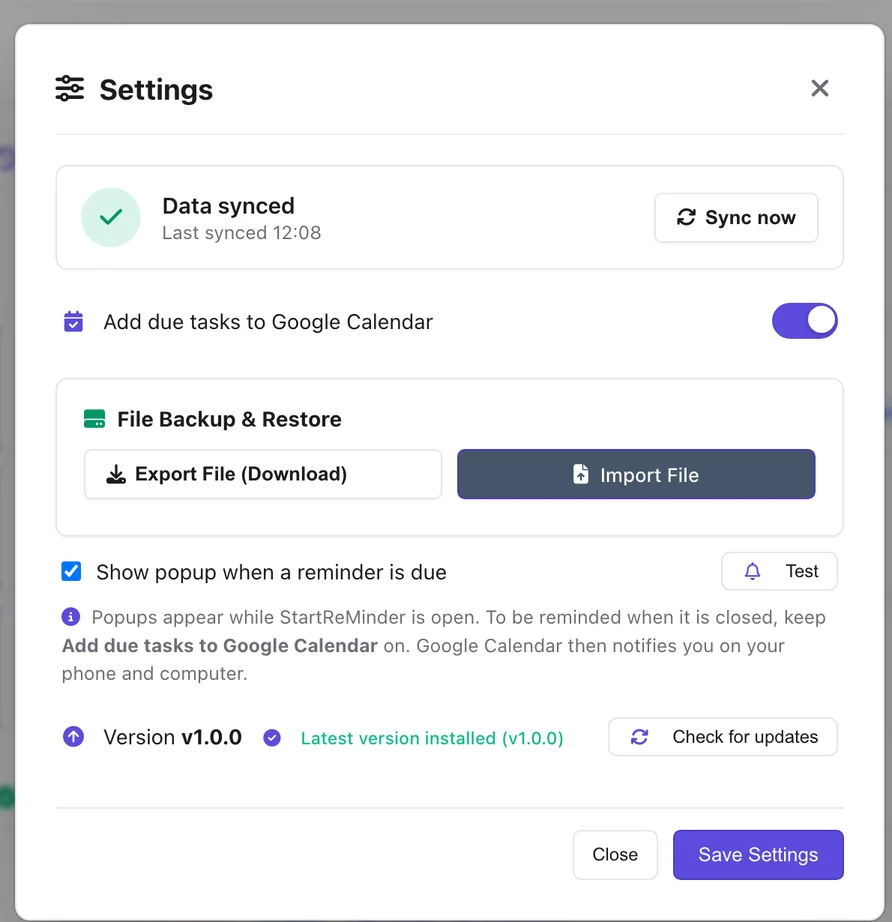
Turn Calendar sync off
Switch off Add due tasks to Google Calendar. Events already in your calendar stay there; you can delete them in Google Calendar.
Keep your own backup file
In Settings under File Backup & Restore, click Export File to download all your tasks as a .json file. Import File restores such a file.
Remove StartReMinder's access
Open your Google Account connections, choose StartReMinder and remove access. To delete your saved tasks, delete the StartReMinder folder in Google Drive.