
Get started with StartReMinder
StartReMinder runs in your web browser on any computer, tablet or phone. Sign in with your Google account and your tasks are saved in your own Google Drive.
What you need
- A recent version of Chrome, Edge, Safari or Firefox.
- An internet connection.
- A Google account (Gmail). Your tasks are saved in your own Google Drive.
Open the web app
Go to app.startupopinions.com/app, or click Open Web App on the home page.
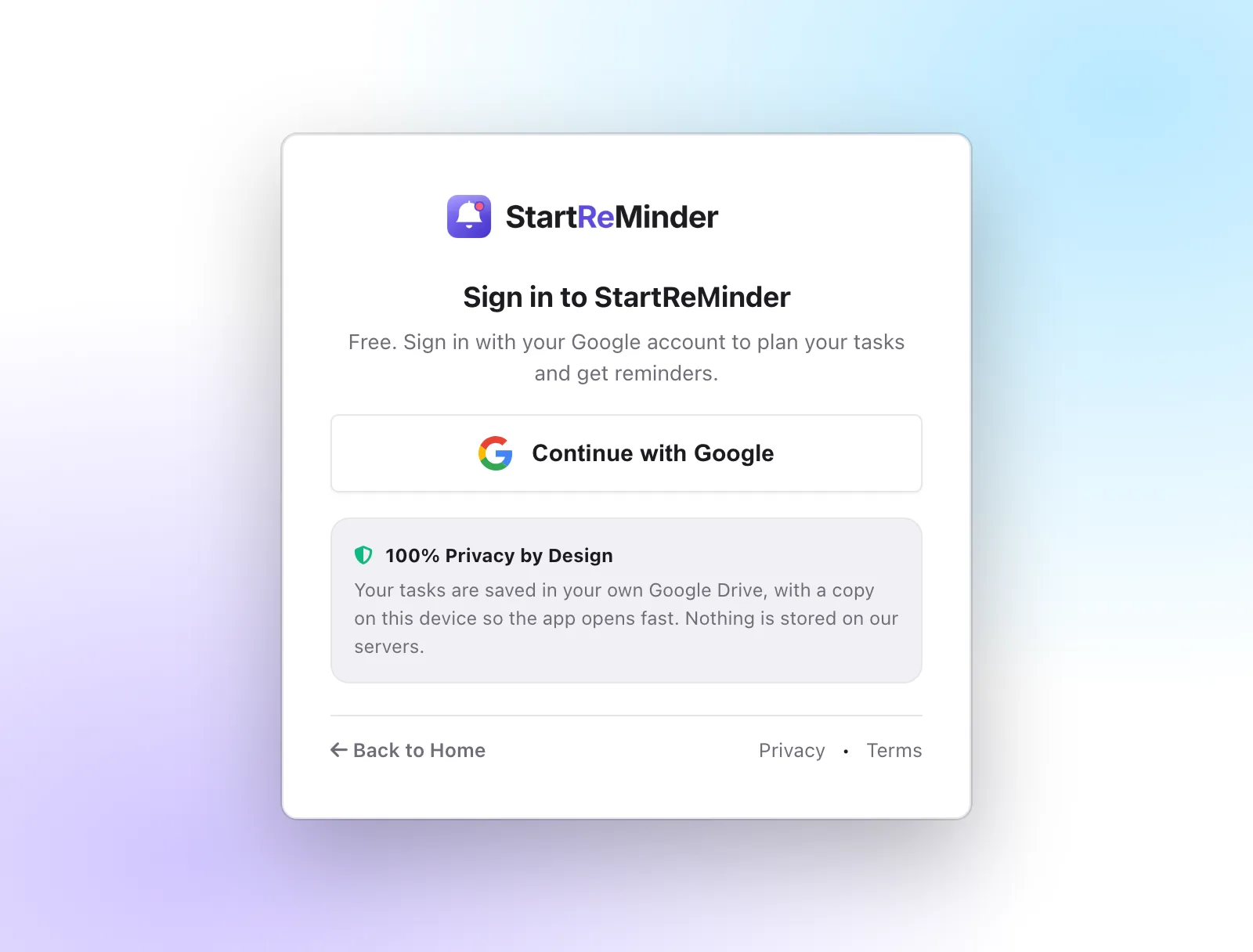
Sign in with Google
Click Continue with Google and choose your account. Google asks you to let StartReMinder see and manage the files it creates in your Drive. Click Allow. Your tasks are then saved in your Google Drive and you can use them on your other devices. To add tasks to Google Calendar, turn on Add due tasks to Google Calendar in Settings.
Next time, the app opens straight away. If Google asks you to sign in again after a while, your tasks stay open: click Reconnect in the sync card to save your changes to Drive.
StartReMinder can only open the files it creates in a StartReMinder folder. It cannot see your other Drive files.
Add your first task
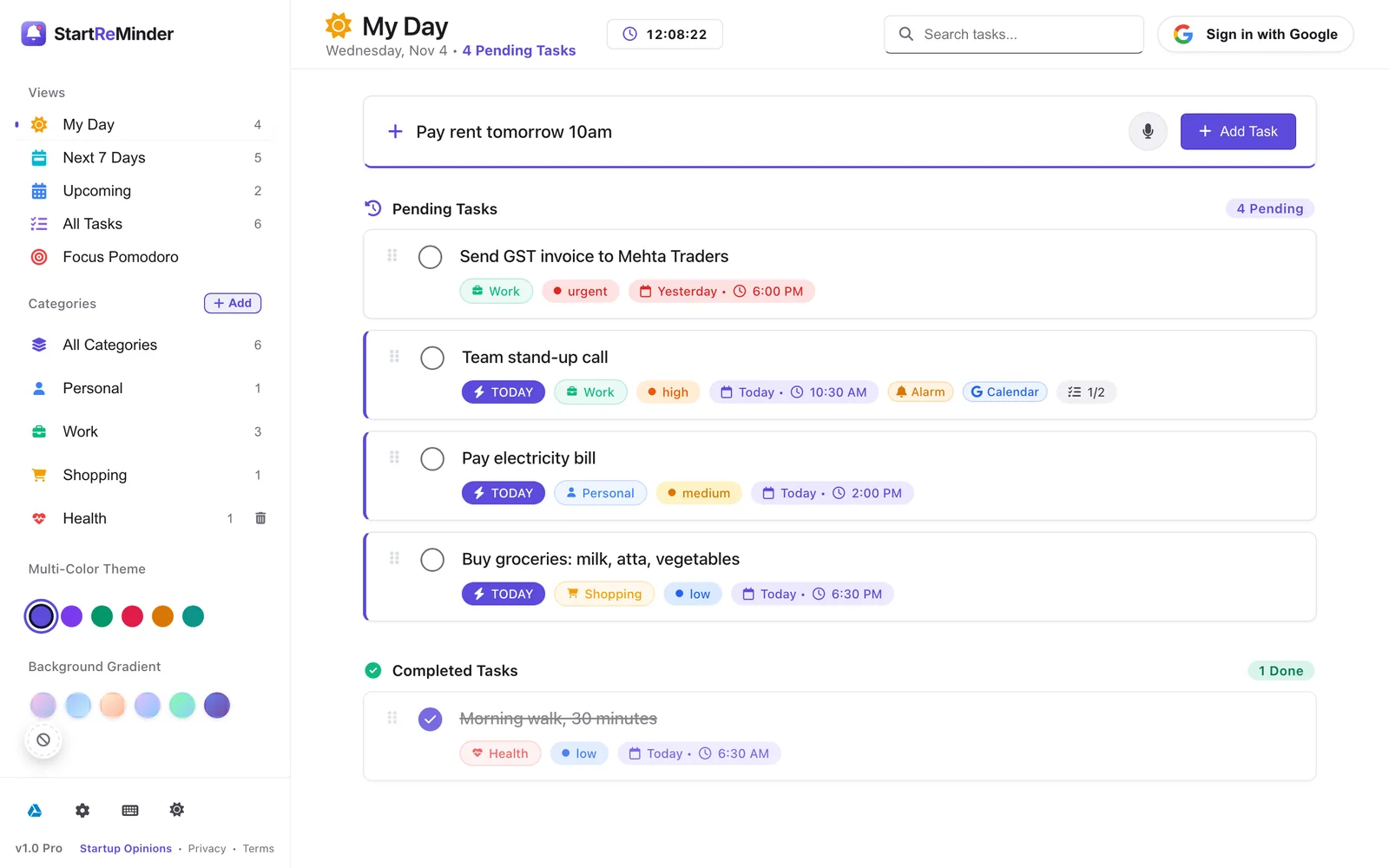
Type in the Add a task box at the top and press Enter. You can write the day and time in plain words, for example Pay rent tomorrow 10am. StartReMinder understands today, tomorrow and times like 10am, 6:30 pm or at 6.
Find your way around
Use the list on the left to switch views:
- My Day: tasks for today and anything overdue.
- Next 7 Days: the week as a board, one column per day.
- Upcoming: everything from tomorrow on.
- All Tasks and your Categories such as Personal, Work and Shopping.
- Focus Pomodoro: a 25-minute focus timer with optional rain or white-noise sound.
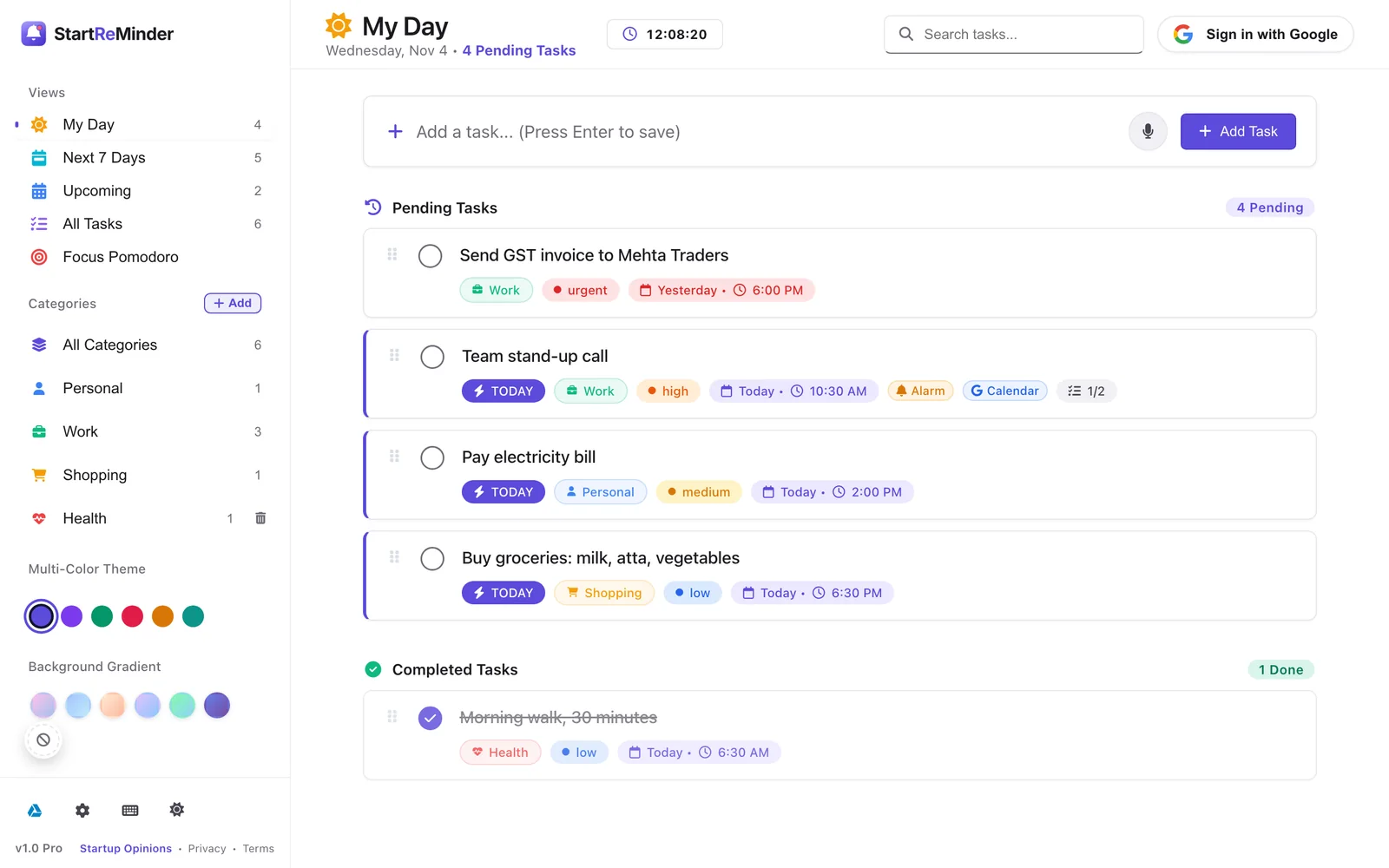
On a phone, tap the menu button at the top left to open this list.
Edit a task
Click a task to open its details. You can add notes, change the date, time, priority and category, add subtasks and set a reminder. Click Save Changes when you are done. Tick the circle next to a task to mark it done.
Keep it one click away
- Chrome or Edge: click the Install app icon in the address bar.
- Safari on macOS 14 or newer: choose File > Add to Dock.
- iPhone or Android: open the browser menu and choose Add to Home Screen.
- Or simply bookmark
app.startupopinions.com/app.