
Get reminders on time
StartReMinder can play a sound and show a pop-up when a task is due. With Google Calendar sync you also get reminders when StartReMinder is closed.
Set a reminder on a task
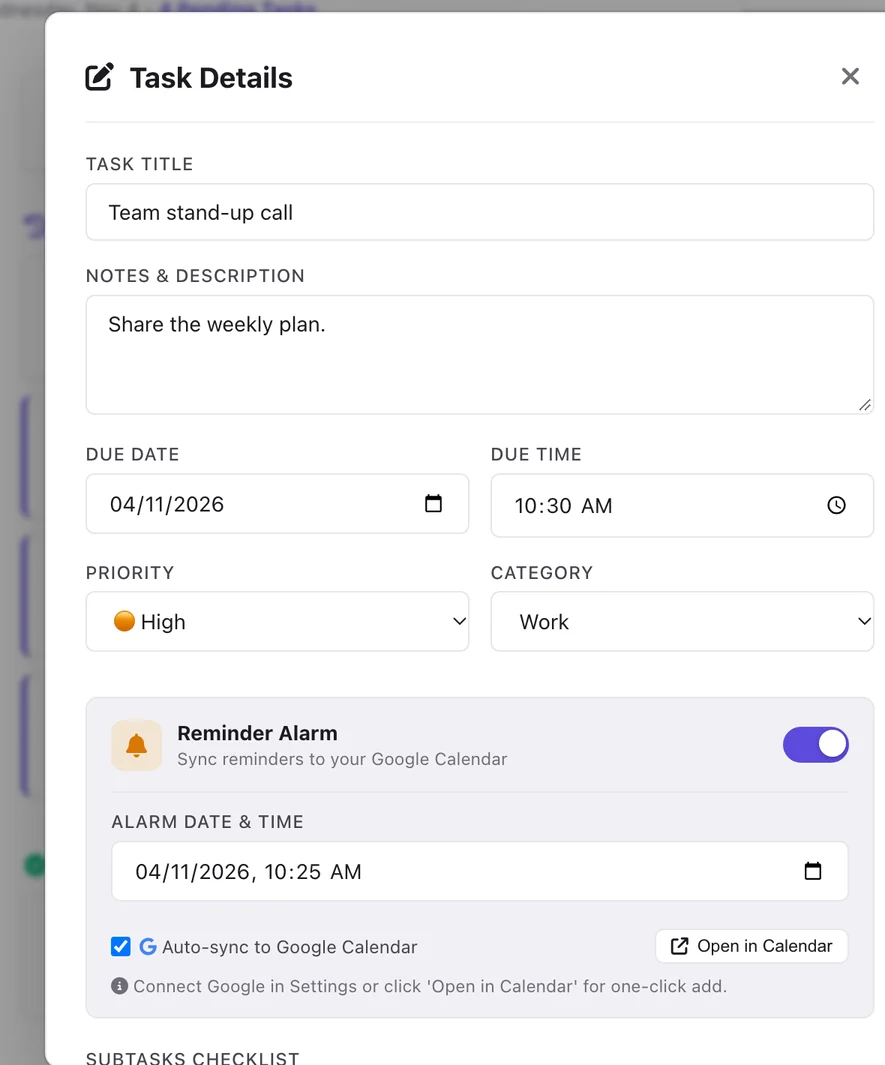
Click a task to open Task Details. Switch on Reminder Alarm, pick the Alarm Date & Time and click Save Changes. Tasks you add with a time, like Call CA tomorrow 11am, get a due time automatically.
Allow notifications
Open Settings, keep Show popup when a reminder is due ticked and click Test. When your browser asks, choose Allow. You should hear a sound and see a test notification.
Get reminders when StartReMinder is closed
StartReMinder's own pop-up only appears while the app is open. To be reminded at other times, use one of these:
- Google Calendar: turn on Add due tasks to Google Calendar in Settings (see Sync with Google Calendar). Google Calendar then notifies you on your phone and computer and sends you a reminder email.
- Windows app: tick Start StartReMinder when Windows starts during setup, so the app is open after your PC starts.
Snooze or complete from the reminder
The reminder pop-up has Complete and Snooze 10m buttons. You can also snooze any task with the clock button on the task.
Missed a reminder?
If a reminder time passed while StartReMinder was closed, it shows the reminder the next time you open the app.