
Install StartReMinder on Windows
The Windows app gives StartReMinder its own window, a desktop icon, a Start menu entry and the option to start with Windows. It uses the same Google sign-in and tasks as the website.
Before you start
- Windows 10 or Windows 11.
- Microsoft Edge (built into Windows) or Google Chrome.
- An internet connection. No admin password is needed.
Download the installer
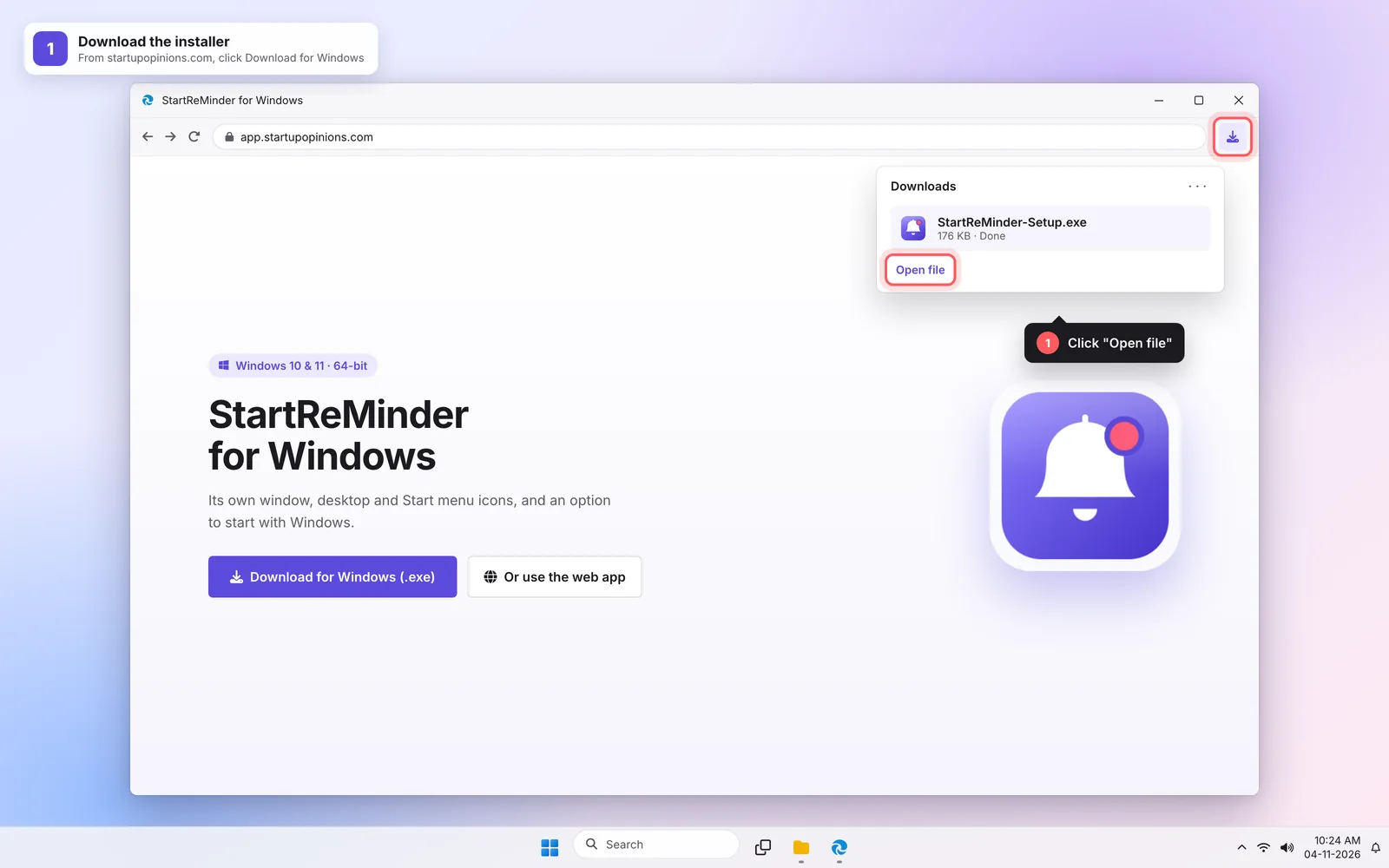
On the home page click Download for Windows (.exe), or download it here. When the download finishes, click Open file.
Allow the app to run
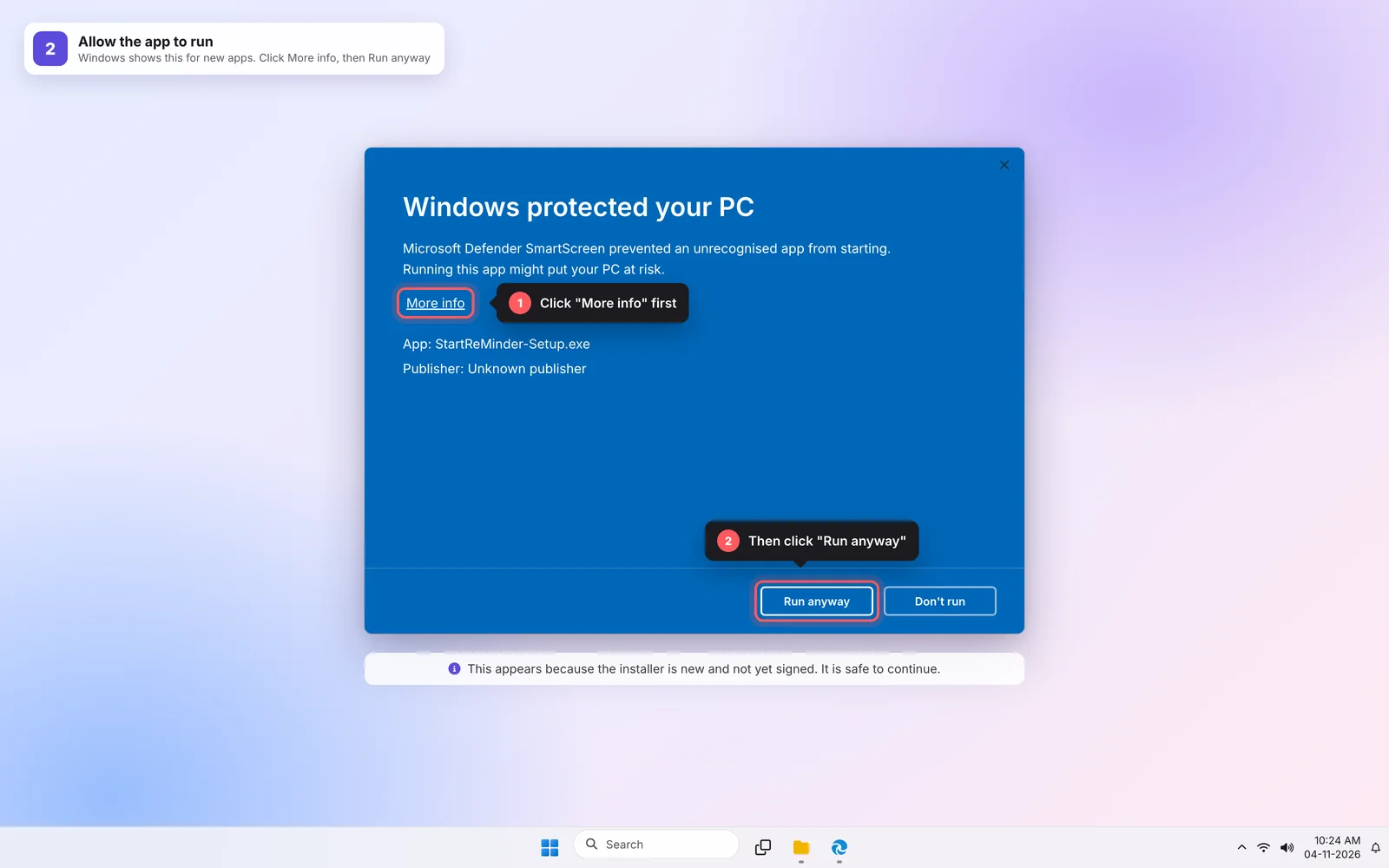
Windows may show Windows protected your PC. This appears because the installer is new and not yet code-signed. Click More info, then Run anyway.
Start the setup
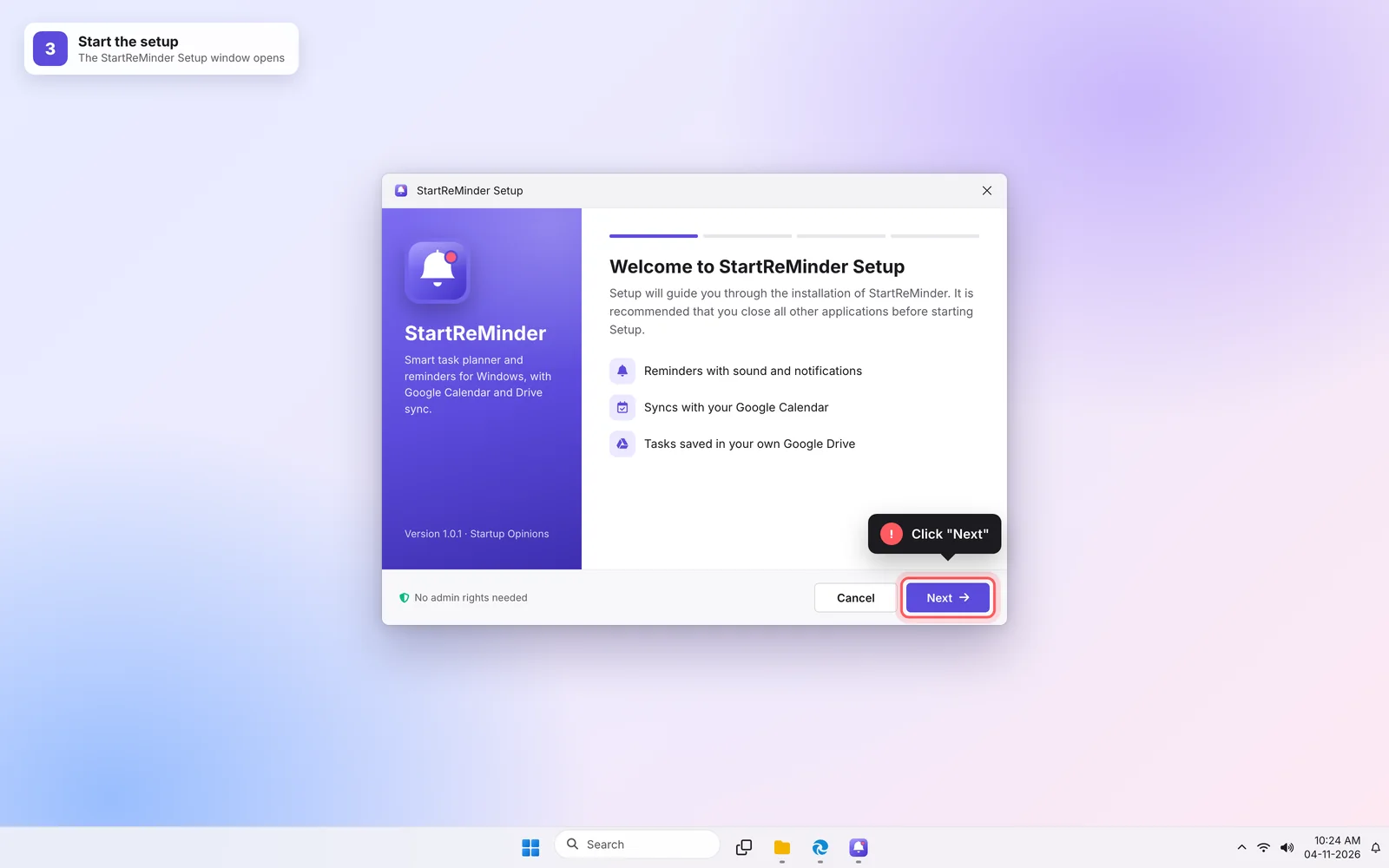
The StartReMinder Setup window opens. Click Next.
Keep the install folder
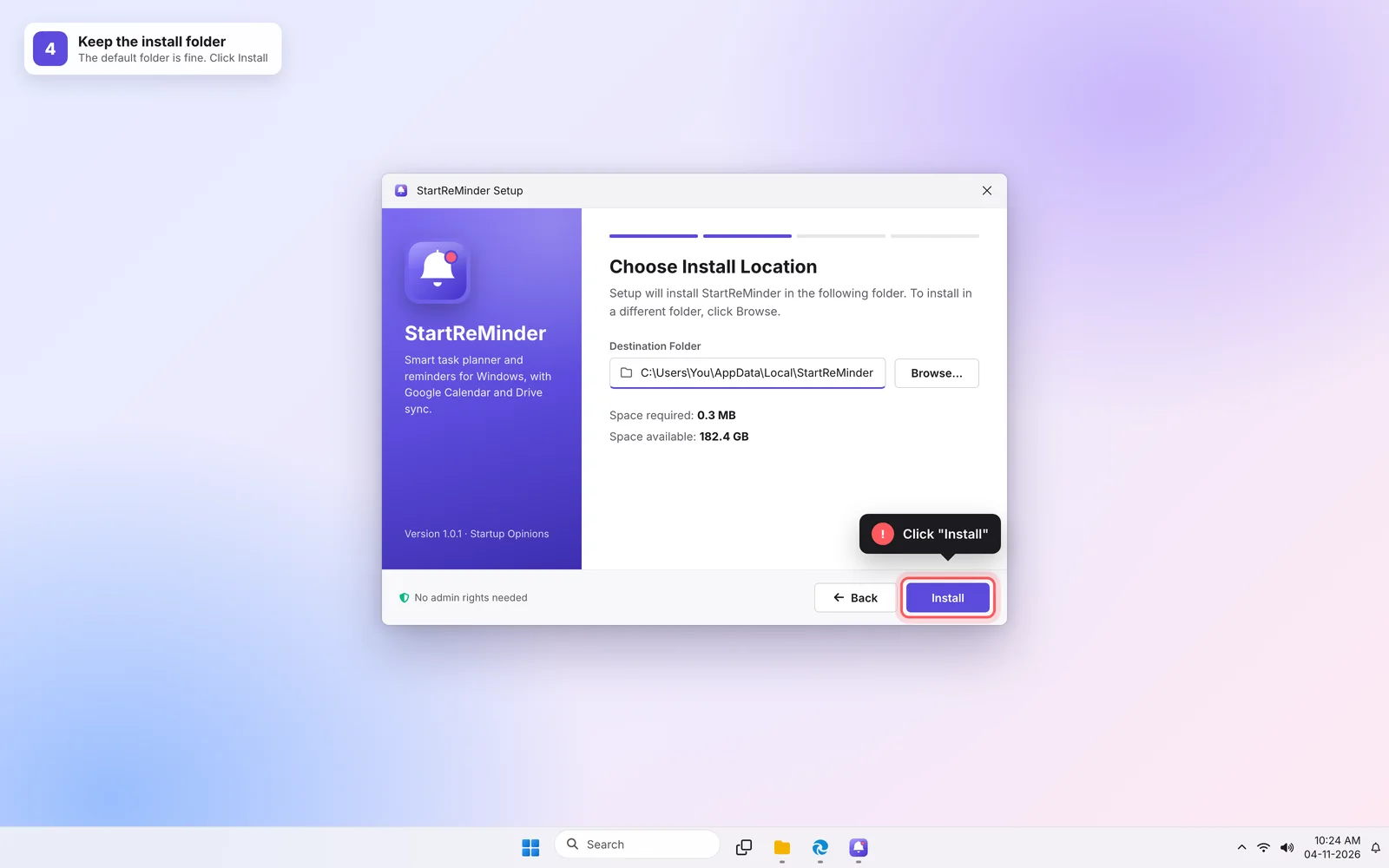
The default folder works for everyone and needs no admin rights. Click Install.
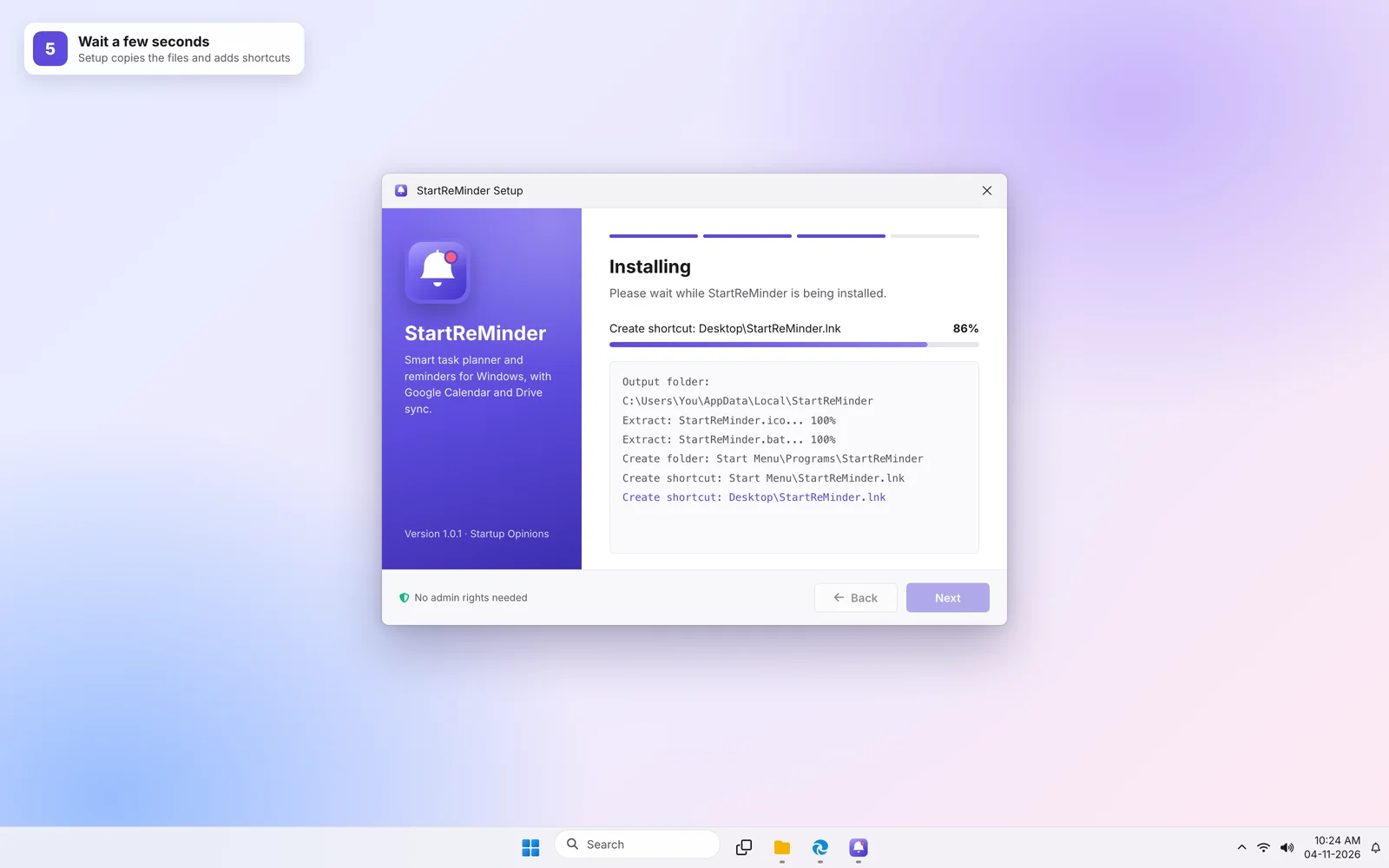
Wait a few seconds
Setup copies the files and adds a Desktop icon and a Start menu entry.
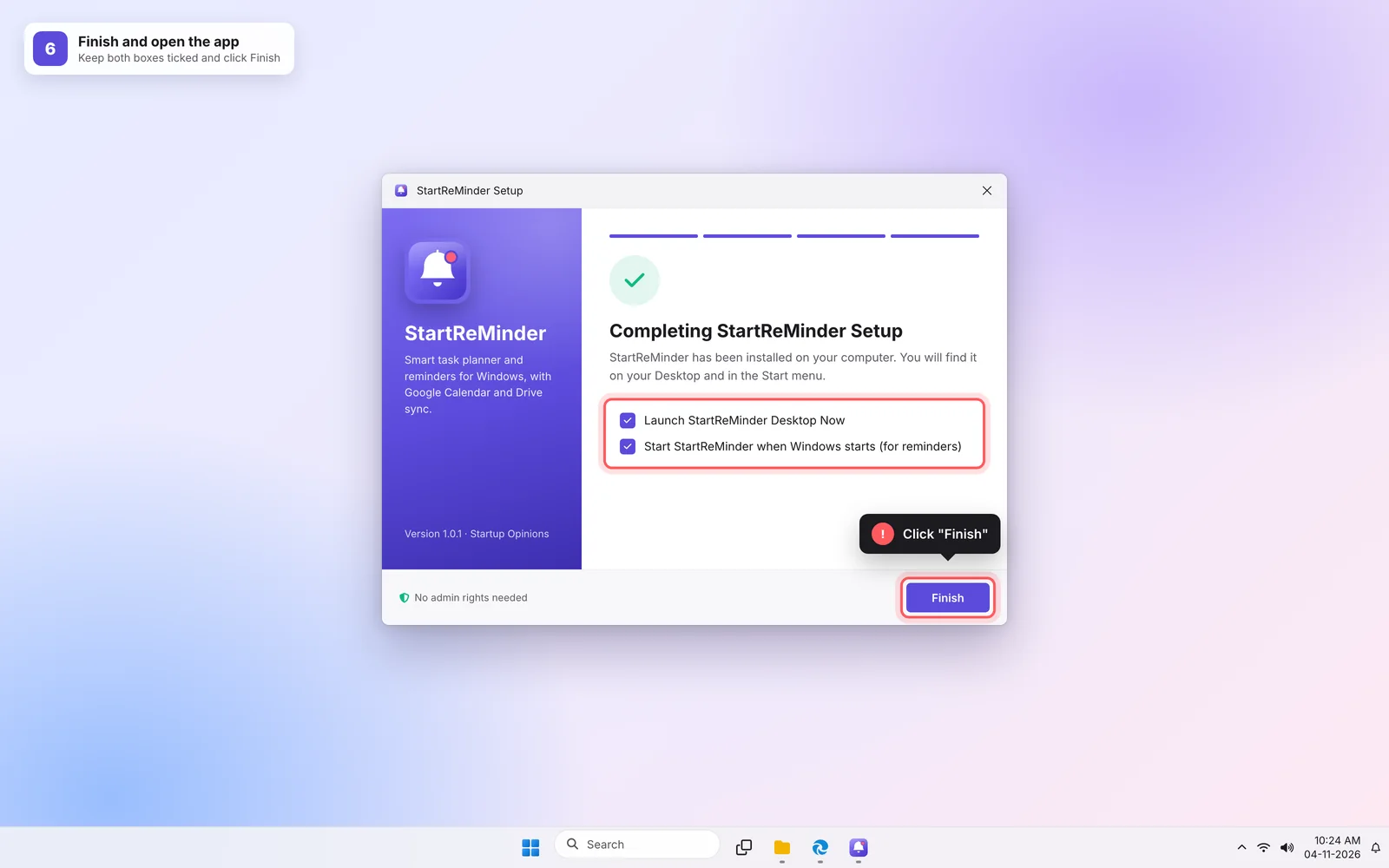
Finish and open the app
Keep both boxes ticked and click Finish:
- Launch StartReMinder Desktop Now opens the app.
- Start StartReMinder when Windows starts opens it each time your PC starts, so your reminders keep coming.
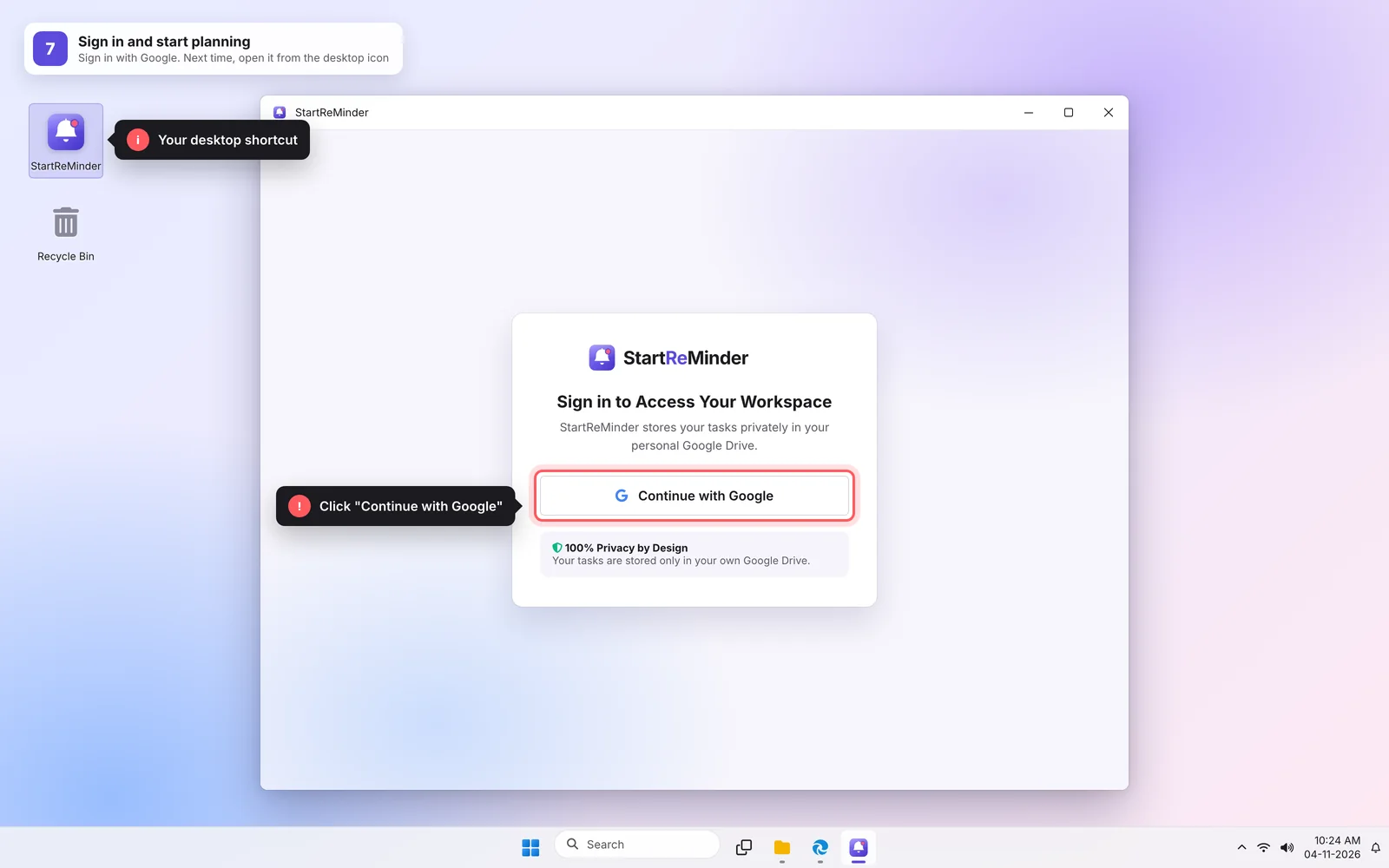
Sign in and start planning
Click Continue with Google and choose your account. Next time, open StartReMinder from the desktop icon or the Start menu.
How to uninstall
Open Settings > Apps > Installed apps, find StartReMinder, click ⋯ and choose Uninstall. You can also use Start menu > StartReMinder > Uninstall. Your tasks stay in your Google Drive.
If something goes wrong
- The app opens in a normal browser tab: neither Edge nor Chrome was found. Install one of them and run the setup again.
- The Google window does not open: allow pop-ups for app.startupopinions.com in your browser settings.
- Your antivirus blocks the download: the installer is new and not yet signed. You can use the web app instead, or contact us.